
On an ARM tablet running Android, the kernel provided by the manufacturer is almost always a frozen fork of the Linux kernel, compiled for a proprietary device tree. Installing a complete GNU/Linux distribution on this type of hardware requires bypassing the locked bootloader, finding a mainline kernel compatible with the SoC, and giving up several peripherals (camera, brightness sensor, sometimes sound).
We recommend clearly distinguishing three scenarios before choosing a method: x86 tablet under Windows, ARM tablet with mainline support, and ARM tablet without mainline support.
SoC Compatibility and Mainline Kernel Support on ARM Tablets
The determining technical factor is not the brand of the tablet, but the mainline support of the SoC by the official Linux kernel. A Rockchip RK3566 (used in the PineTab2) has drivers built into the upstream kernel, ensuring security updates and decent stability. An older Qualcomm Snapdragon or a consumer MediaTek will often only have a frozen BSP kernel in version 3.x or 4.x, with no prospect of mainline porting.
When the SoC is not supported in mainline, distributions like postmarketOS provide a community kernel specific to the device. On an older Samsung Galaxy Tab, this concretely means: no camera, no brightness adjustment, sound sometimes absent, and degraded battery life. XFCE often remains the only usable graphical interface, as Phosh is too resource-intensive for these devices.
Before diving in, check the postmarketOS or Mobian wiki page corresponding to your exact model. The level of support is classified by category (from “main” to “testing”), and this information is worth more than any YouTube tutorial.
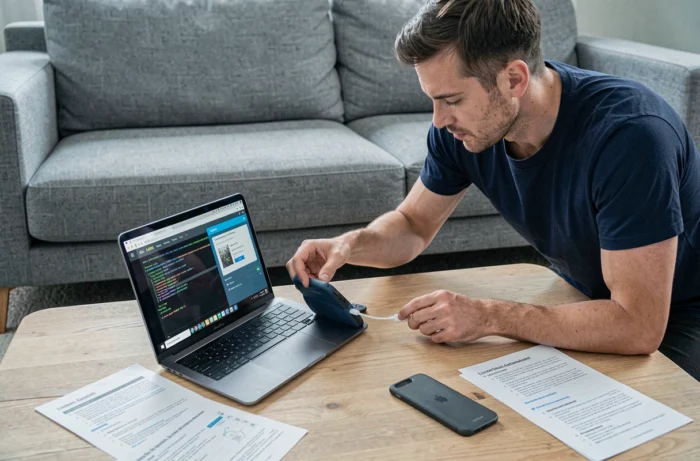
Tablets Designed for Linux: The Realistic Path for Beginners
Tinkering with Android tablets remains an exercise reserved for experienced users. For a beginner, buying a natively Linux-compatible tablet is the only reliable approach. Several devices have met this need since 2024, notably the PineTab2 and the Juno Tab 3.
These tablets share technical characteristics that fundamentally change the installation experience:
- A standard UEFI firmware, identical to that of a laptop, allowing you to boot any ARM ISO image without unlocking the bootloader.
- An SoC with already mature mainline kernel support, ensuring the functionality of Wi-Fi, touch, sound, and power management right from installation.
- Preinstalled or officially supported distributions (postmarketOS, Mobian, Ubuntu Touch) with regular updates.
In practice, the installation resembles that of Linux on a PC: you flash an image onto a microSD card or USB stick, boot from it, and the graphical installer takes over. The available documentation for installing Linux on a touchscreen tablet covers the hardware and software prerequisites for this process.
x86 Windows Tablet: Secure Boot and Recent UEFI Constraints
x86 tablets running Windows (Surface Go, Lenovo IdeaPad D330, refurbished models) represent the other family of hardware where Linux installs almost natively. The process is identical to that of a laptop: creating a bootable USB stick, disabling or configuring Secure Boot, then proceeding with a standard installation.
A recent point of caution concerns the Secure Boot UEFI CA 2023 certificate deployed by Microsoft. This new certificate is gradually replacing the old one on updated firmwares. Major distributions (Ubuntu, Fedora, openSUSE) have integrated support for this certificate in their signed shims, but some lesser-known distributions have not yet done so.
If your Windows tablet refuses to boot from a Linux USB stick despite Secure Boot being enabled, there are two options:
- Disable Secure Boot in the UEFI BIOS (generally accessible via Volume+ at startup on tablets without a keyboard).
- Use a distribution whose shim bootloader is signed with the 2023 certificate (Ubuntu 24.04+, Fedora 40+).
- For tablets with a touchscreen only, plan for a USB-C hub with an external keyboard to navigate the BIOS, as the touchscreen may not always function in the UEFI interface.
Touch Drivers and Screen Rotation
Once Linux is installed on an x86 tablet, the touch functionality generally works through the kernel’s generic HID drivers. Automatic screen rotation depends on the presence of an accelerometer supported by iio-sensor-proxy. GNOME and KDE Plasma natively manage this rotation, but lighter environments like XFCE require a manual script using xrandr and xinput.
The virtual keyboard remains a weak point under Linux. GNOME includes a functional on-screen keyboard, Plasma offers Maliit, but neither reaches the typing comfort of Android or iPadOS. We recommend pairing a Bluetooth keyboard with any Linux tablet intended for productive use.
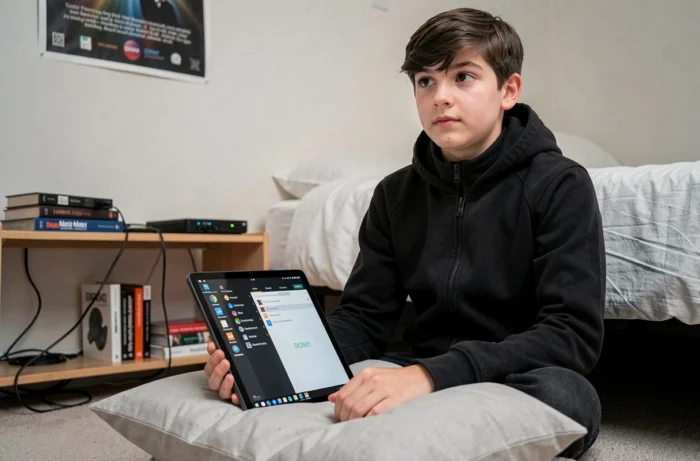
PostmarketOS and Mobian: Which Distribution to Choose for Touchscreen Tablet
PostmarketOS aims for hardware longevity by maintaining kernels for older ARM devices. Its Alpine Linux base makes it lightweight, but the package ecosystem remains limited compared to Debian. Mobian, based on Debian, offers a much broader software catalog and immediate familiarity for anyone who knows apt.
Ubuntu Touch, maintained by the UBports foundation, offers a native and consistent touchscreen interface, but operates in read-only mode with an application container system that may confuse users accustomed to traditional Linux desktops. For terminal, text editing, and web browsing use, Mobian with Phosh offers the best compromise between touchscreen ergonomics and flexibility.
On natively compatible ARM tablets, the choice is made based on usage: postmarketOS for an old device you want to keep alive as long as possible, Mobian for a lightweight workstation, Ubuntu Touch for a smartphone-like experience.
The most underestimated factor remains power management. On an ARM device without complete SoC support, standby consumption can drain the battery in a few hours. Always check the status of the power management driver on your distribution’s wiki before considering the tablet as usable for daily use.