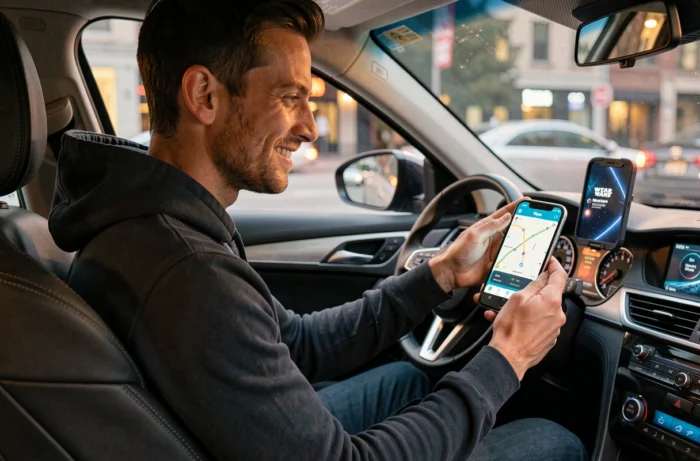
We’re on the highway, the journey is long, and Waze’s default voice eventually blends into the background noise. Changing the voice guidance to a character voice, like Darth Vader’s for example, transforms the monotony into something more engaging. The problem is that this voice is not natively offered in the app. You have to take a detour, and the method depends on what you are willing to do with your phone.
Darth Vader Voice on Waze: Why It’s Not in the Native Settings
Waze regularly offers officially licensed voices, integrated through partner campaigns. We’ve seen Denis Brogniart for Koh-Lanta or characters related to video game franchises like Halo. These voices appear temporarily in the settings and then disappear once the campaign is over.
For Darth Vader, no official campaign with Disney or Lucasfilm has been documented. Therefore, the Sith Lord’s voice is not available with a single click in the app’s “Sound and Voice” menu. To obtain it, you need to use third-party tools, mainly AI voice generators.
If you’re looking to activate the Darth Vader voice on Waze, you need to understand that the procedure relies on recording a custom voice pack, not on a native download.
AI Voice Generator and Waze Voice Pack Recording
The FakeYou platform is the most commonly used tool for this type of customization. It offers a catalog of over 2,400 AI voices, including several imitations of Darth Vader. The principle is simple: you type the text of each GPS instruction, the generator produces an audio file with the character’s tone, and you retrieve the recordings.
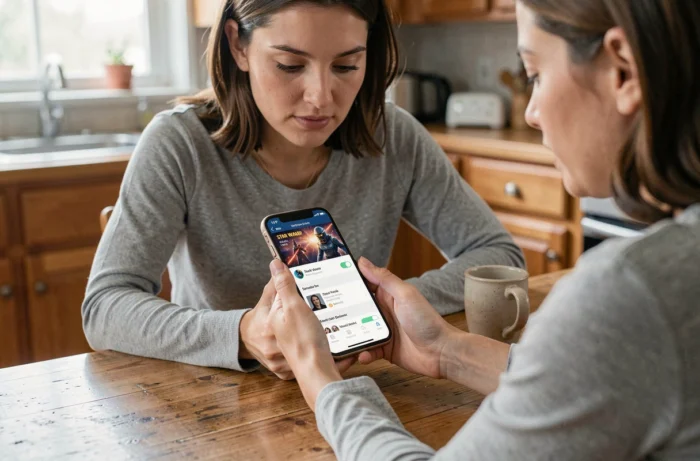
Waze allows you to record your own voice directly in the app. This is the mechanism we are circumventing. Instead of speaking into the microphone yourself, you play the audio files generated by the AI during the recording. Specifically, you start the recording sequence in Waze and play the corresponding audio file for each instruction (“Turn left,” “In 500 meters, take the exit,” etc.).
Instructions to Record in Waze
Waze requires you to record a series of specific instructions to create a complete voice pack. Each phrase must be clear; otherwise, the guidance will be incomprehensible in real situations.
- The basic directions: “Turn left,” “Turn right,” “Continue straight,” “Make a U-turn”
- The distance announcements: “In 100 meters,” “In 500 meters,” “In one kilometer”
- The journey events: “You have arrived at your destination,” “Recalculating route,” “Take the exit”
Each instruction requires a separate audio file. If you’re using FakeYou, you generate each phrase separately, then play them one by one during the Waze recording sequence. Plan for about twenty minutes for the entire process.
Waze Audio Settings for a Character Voice That Works Well
Once the voice pack is recorded, Darth Vader’s voice replaces the default voice. However, the experience can quickly become annoying if the audio settings are not adjusted. Waze offers several levels of voice chatter, and this is a parameter that most guides do not address.
The “Less talkative” option reduces announcements to the bare minimum. For a character voice, this is often the right compromise. The comedic effect of Darth Vader announcing every turn loses its charm after twenty minutes of urban driving with instructions every thirty seconds.
You can also manage the navigation voice volume separately from the sound alerts (speed cameras, reported dangers). This distinction allows you to keep Darth Vader audible without the alert beeps being drowned out or, conversely, deafening.
Accessing Voice Settings in the App
From the main Waze screen, tap the search icon, then access the settings via the gear icon. The “Sound and Voice” section groups everything: choice of active voice, chatter level, and relative volume. If the Darth Vader pack has been correctly recorded, it will appear in the list of available voices under the name you gave it.
Legal and Practical Limits of AI Voices on Waze
Using a generator to reproduce Darth Vader’s voice raises a question that few users consider. The voices of fictional characters are covered by intellectual property rights. Personal and private use is tolerated, but public distribution poses a problem.
Sharing a Darth Vader voice pack on a forum or social network could theoretically constitute an infringement of the rights held by Disney/Lucasfilm. In practice, platforms like FakeYou operate in a gray area. Feedback varies on this point, and the legal situation of these tools continues to evolve in 2026.
Practically, the quality of the result directly depends on the generator used and the method of playback during recording. Playing an audio file through an external speaker into the phone’s microphone yields a poor result. It’s better to use an audio cable or an internal sound routing app to ensure the signal remains clean and free of background noise.
- Use internal audio routing (third-party app or cable) instead of the phone’s speaker
- Record in a quiet environment to avoid background noise picked up by the microphone
- Test each recorded instruction before finalizing the complete pack
The final result will never be identical to a voice officially integrated by Waze. Audio compression and recording conditions always leave a mark. For personal use on regular trips, the output remains convincing enough to enjoy every “Turn right” pronounced with the gravitas of a Sith Lord.